What's where in the dashboard
The dashboard is what the owner opens: from a phone, a computer or the "Selvora Business" app. The POS sits at the location and sells; the dashboard watches and decides. Below is every section in plain words: why you need it, where to start and what to look at.
The three things all of this exists for
The rest is detail — you'll come back to it later.
- You see the money. Today's revenue, how many receipts, how much is really left after ingredients — not in a notebook, automatically.
- You see the stock. How much milk is left, what's running out, where it went — written off, sold or missing.
- You see the people. Who worked, how much they handed in, who makes refunds more often than others.
The dashboard in order
📊 Overview
The first thing that opens. It answers "how's business" — for today, the week or the month, for one location or all of them.
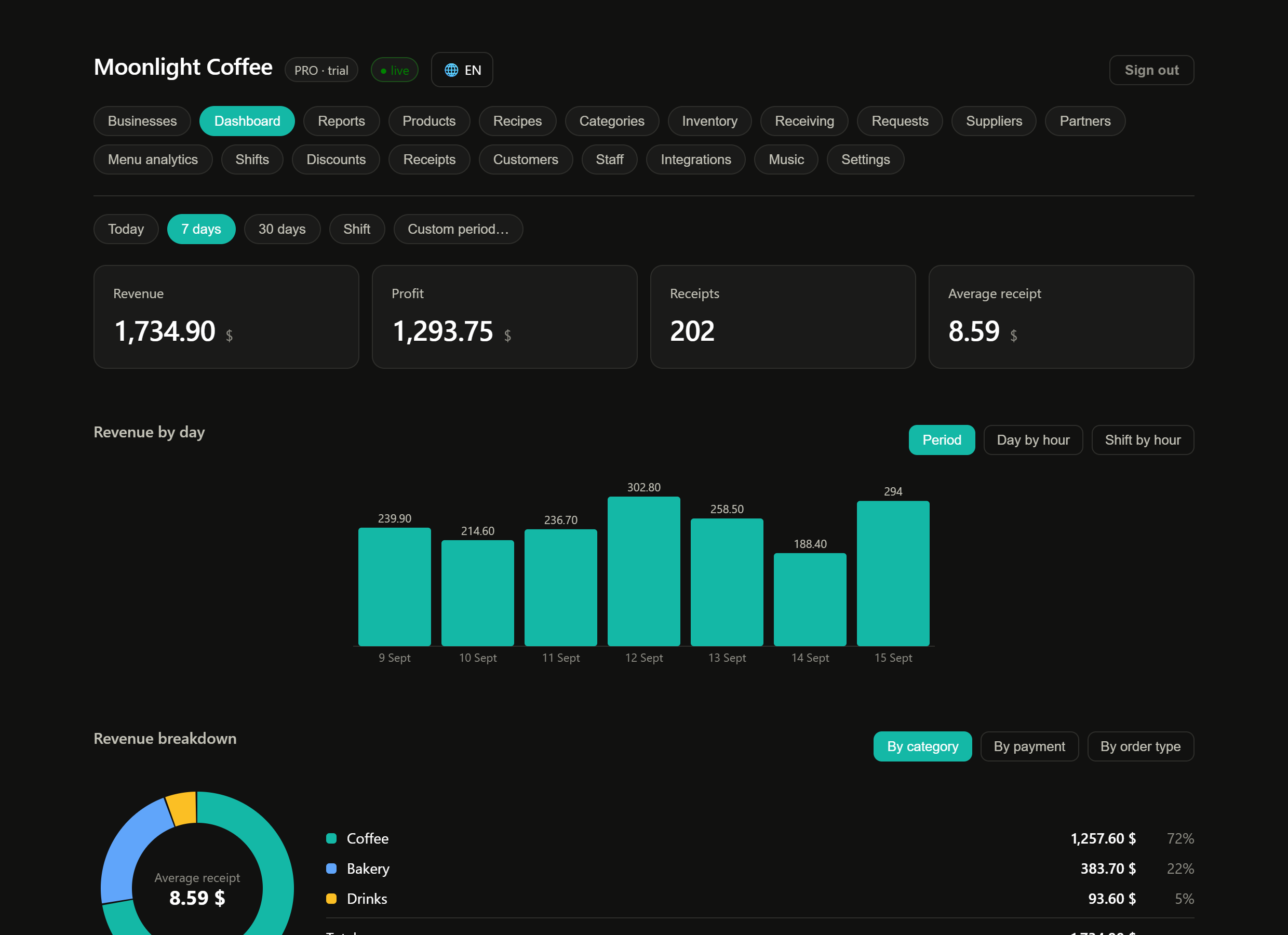
- Revenue — how much money guests brought in.
- Profit — how much is left after the cost of ingredients. These are different numbers, and the second one matters more.
- Average receipt — how much one guest spends on average. If it grows, upselling works.
- Daily chart — click a bar and it shows what that day was made of.
🍔 Products
Your menu or shelf: what you sell and at what price. Everything switched on here is visible to the cashier on the POS — nothing to set up separately.
- Add items — by hand or import from your old system (Settings → Data).
- Set the selling price and category.
- Switch off what you don't sell right now. No need to delete: past sales stay.
📋 Recipes
A recipe card is a recipe for the system: what one portion is made of. Cappuccino — 18 g of beans, 150 ml of milk, a cup, a lid.
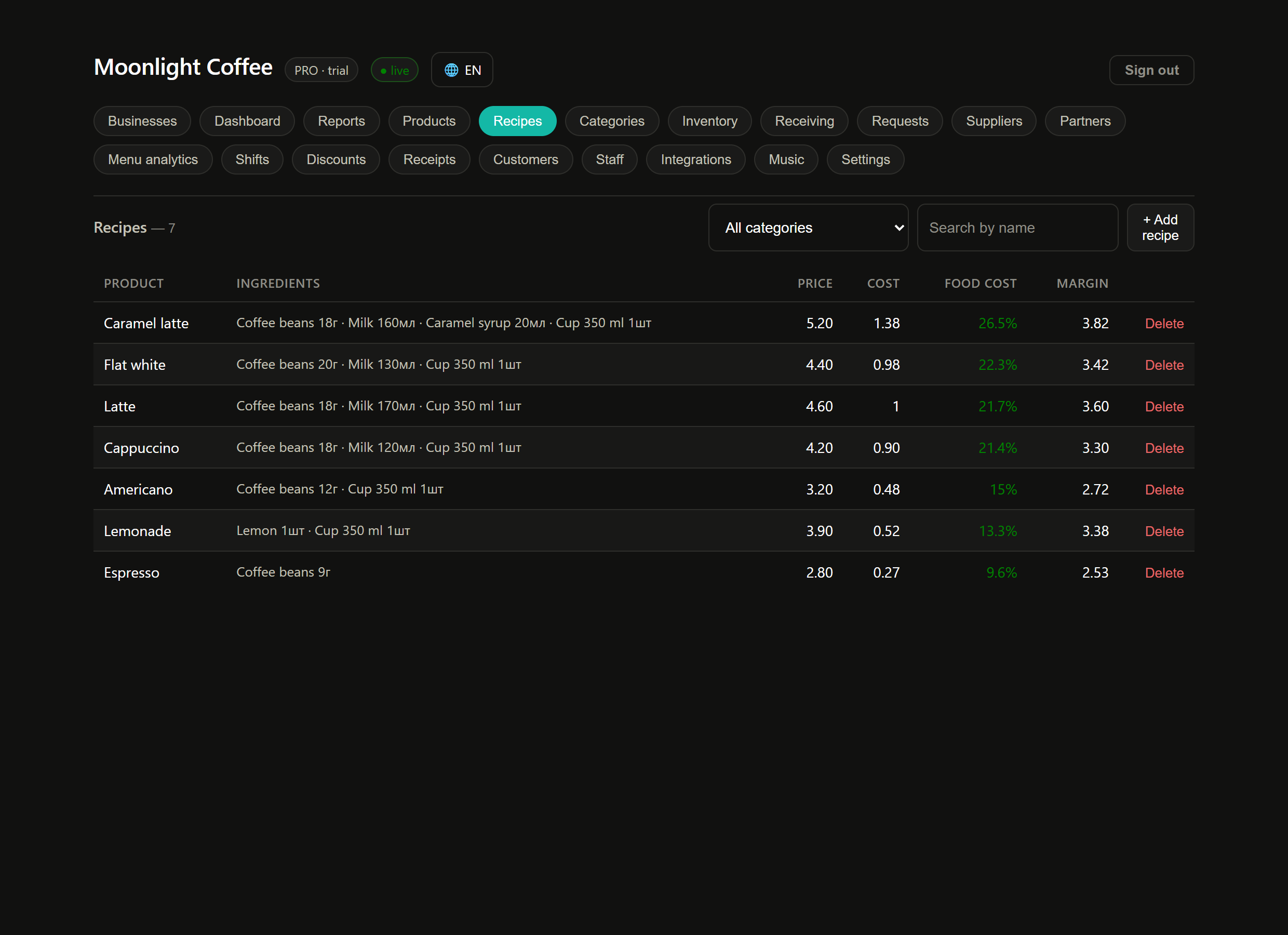
- Open an item from the menu.
- Add ingredients from stock and enter the amount per portion — in ml, g or pieces.
- Save. From then on the numbers update themselves, even when ingredients get more expensive.
📦 Stock
How much stock is left and what it was bought for. The cost of everything else comes from here.
- Add ingredients: milk, beans, syrups, cups.
- Set the purchase price. You can enter a pack — "2.5 litres for 170 MDL" — and we'll work out the price per millilitre.
- Set a minimum level — we'll warn you when it's time to restock.
🚚 Purchasing, requests and suppliers
Purchasing — what was delivered to you. Enter the delivery: stock is topped up, prices are updated. Requests — requests from the location: "milk is running out", "wrote off spoiled stock". Suppliers — your list of who you buy what from.
- Milk got more expensive — costs are recalculated and you'll see that coffee now earns less.
- Stock levels will be real, not "roughly".
- You'll see which supplier is more expensive.
🎯 Menu analytics
The most useful section. It shows what you really make money on and what you sell almost for free.
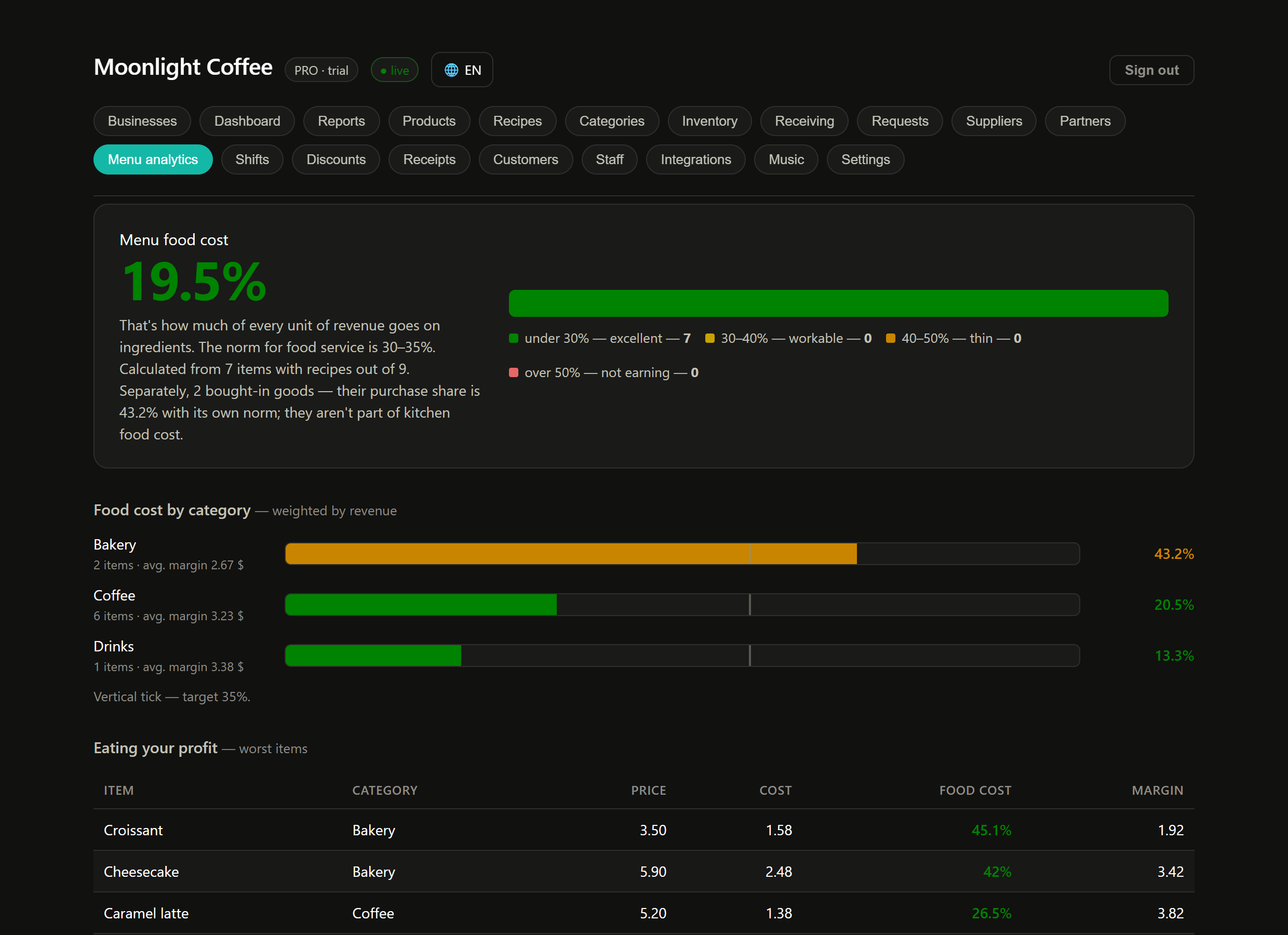
- An item is red and sells often — raise the price or reduce the portion.
- An item is green and sells often — move it up the menu and recommend it.
- An item is green but nobody orders it — it's not the price, it's the name or its place in the menu.
🪑 Chair hour
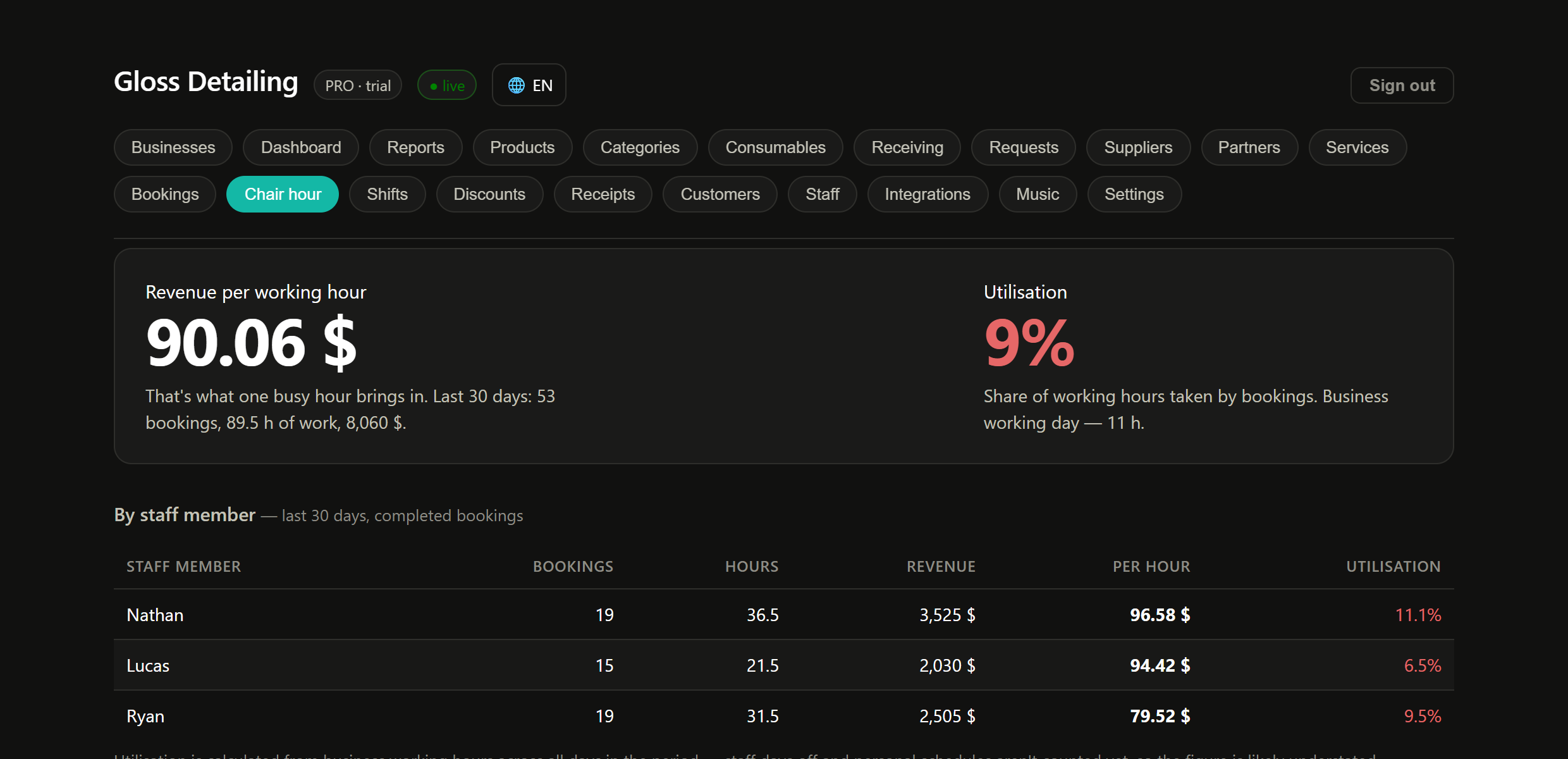
For businesses that sell time: barbershops, car washes, nail salons, table rental. Shows how much money one hour of a specialist's work or one spot brings in.
🕐 Shifts
Who worked when, how much money should be in the till and how much was actually handed in.
🧾 Receipts
Every sale one by one: what was bought, when, how it was paid, who rang it up. Refunds are made from here too.
- "The guest says they paid twice" — find the receipt by amount and time.
- "Why was there a shortage yesterday" — check that day's refunds and discounts.
- "What do people buy with coffee" — open any receipt and see everything in it.
👥 Customers
Guest database: phone, how many times they came, how much they spent, how many points they have. A guest is added on the POS by phone number in a couple of seconds.
🧑🍳 Staff
Who works for you, which PIN they use on the POS and what they're allowed to see.
- Add a staff member and give them a PIN.
- Remove what's not needed: a cashier doesn't need purchasing, reports and supplier prices.
- Someone left — just switch them off. All their past receipts stay in place.
⚙️ Settings
Everything about the business: currency, taxes, receipt layout, importing data from your old system, exporting everything and the subscription.
- Currency — so the numbers match reality.
- Receipt — what's printed for the guest: name, address, phone, card QR.
- Import — if you're moving from another system, the menu comes over in a file.