POS at the location
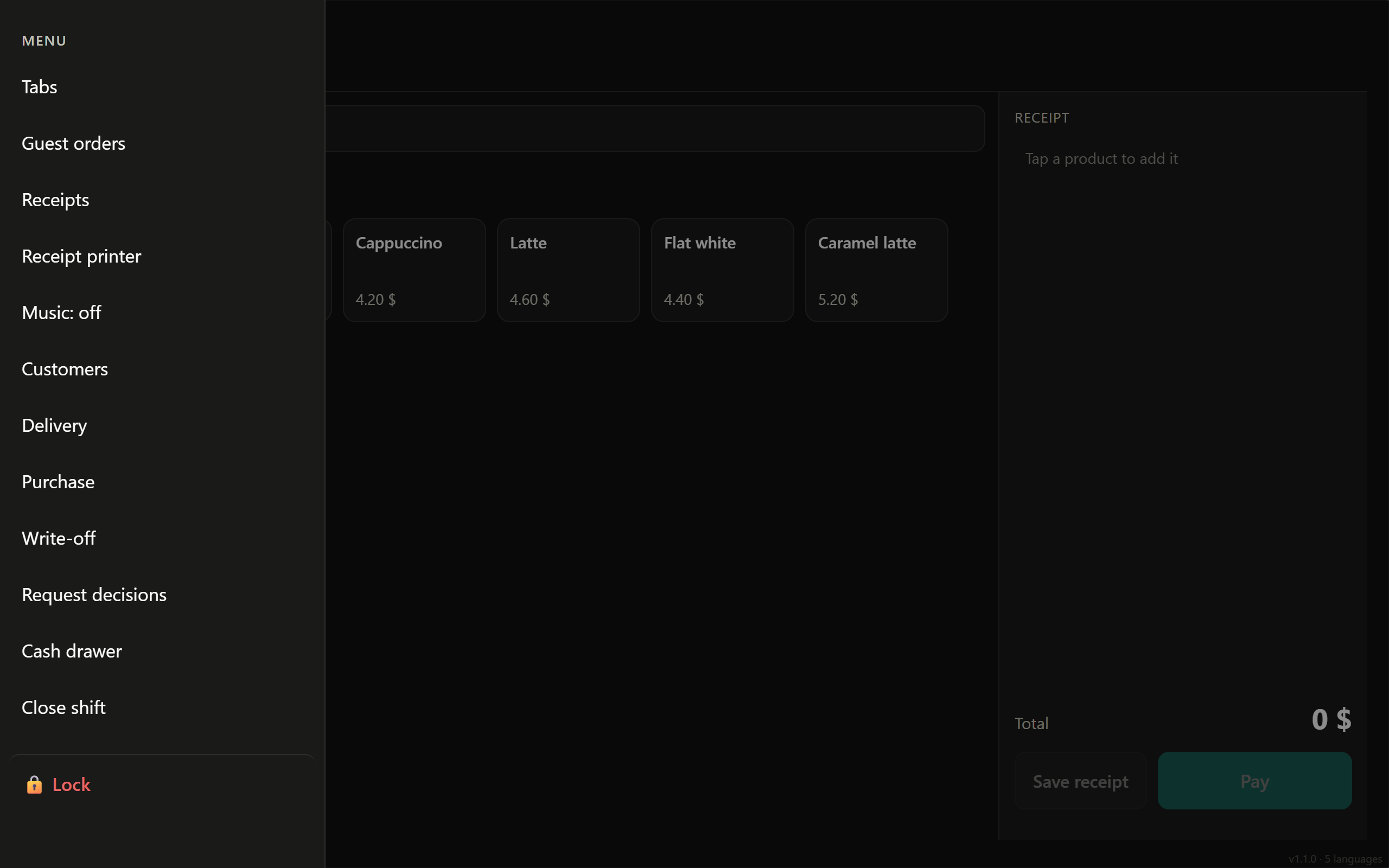
You can safely show this page to a new bartender or shop assistant on their first day. The POS is an app on a tablet or phone. Everything it needs to know about your menu and prices it gets from the dashboard by itself.
How a shift goes
🔑 PIN login
The cashier enters their PIN — the one the owner gave them in the "Staff" section. There are no logins or passwords at the location: a PIN is faster and won't end up forgotten in a chat.
🕐 Opening and closing a shift
The shift is opened in the morning and closed in the evening. At closing, the POS shows how much money should be in the drawer, and the cashier enters how much is actually there.
🛒 Sale
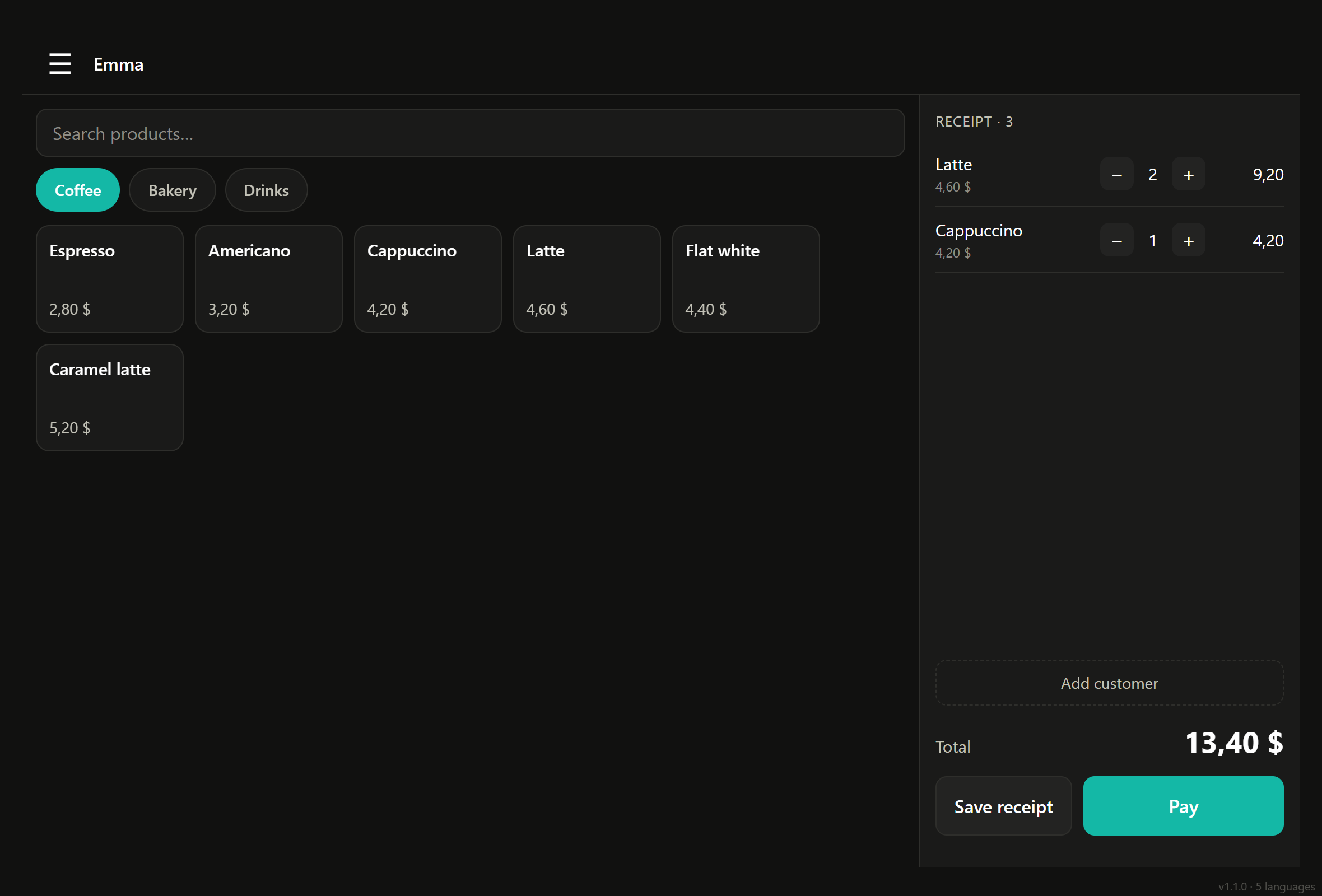
- Tap items — they're added to the receipt on the right.
- Quantity changes right there; swipe to remove extras.
- If a discount is needed, pick it from the list. The owner sets up discounts in the dashboard.
- Tap "Pay".
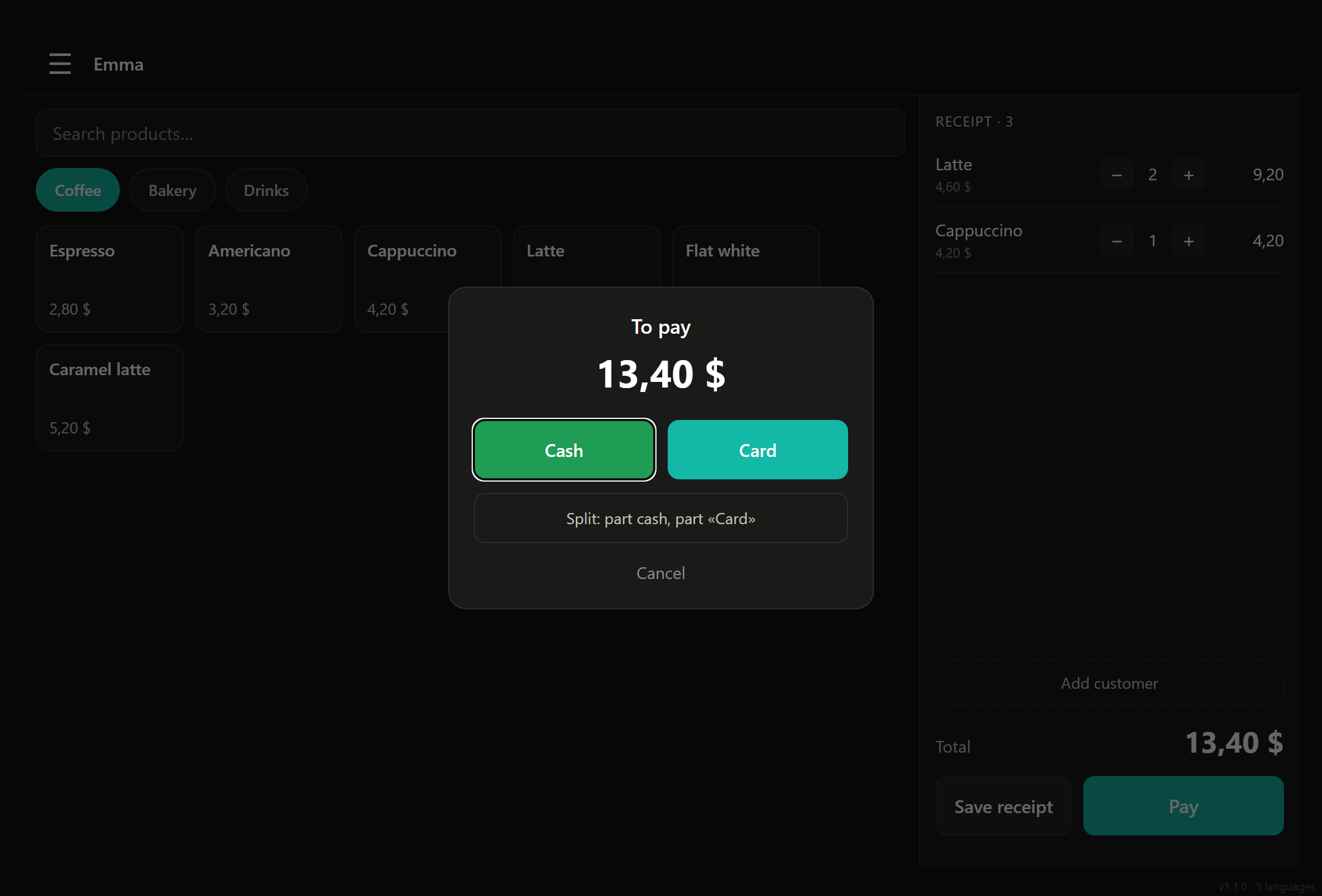
💳 How they paid
Cash, card or transfer. It's not a formality: these buttons are what the till is reconciled with in the evening, and card payments are matched with the bank.
- The owner sees these sales in the dashboard — they don't get lost.
- The transfer isn't printed on the guest's receipt.
- It doesn't break card reconciliation with the bank — it's counted separately.
👤 The guest and their card
The cashier asks for a phone number — the guest appears in the database and starts collecting points. No need to search next time: the number is remembered.
↩️ Refund
Find the receipt and refund it in full or item by item. The ingredients go back to stock.
🗑 Write-offs and requests
Milk went sour, a bottle broke, coffee is running out — the cashier marks it right on the POS. The owner gets a notification, approves or declines with a reason, and the answer is visible at the location immediately.
📴 The internet is down
The POS keeps selling. Receipts are stored inside it and go to the dashboard by themselves when the connection is back. The guest doesn't notice anything, and neither does the cashier.