A menu on the table that you never reprint
A paper menu goes stale the day you raise the price of a coffee. One place crosses it out by hand, another prints a new stack, and the guest asks the waiter anyway. The Selvora QR menu takes items and prices straight from your POS: change it at the POS and the guest's phone already shows the new one.
📱 What the guest sees
The guest points a camera at the sticker — your storefront opens. Nothing to install: it's an ordinary page in the phone's browser.
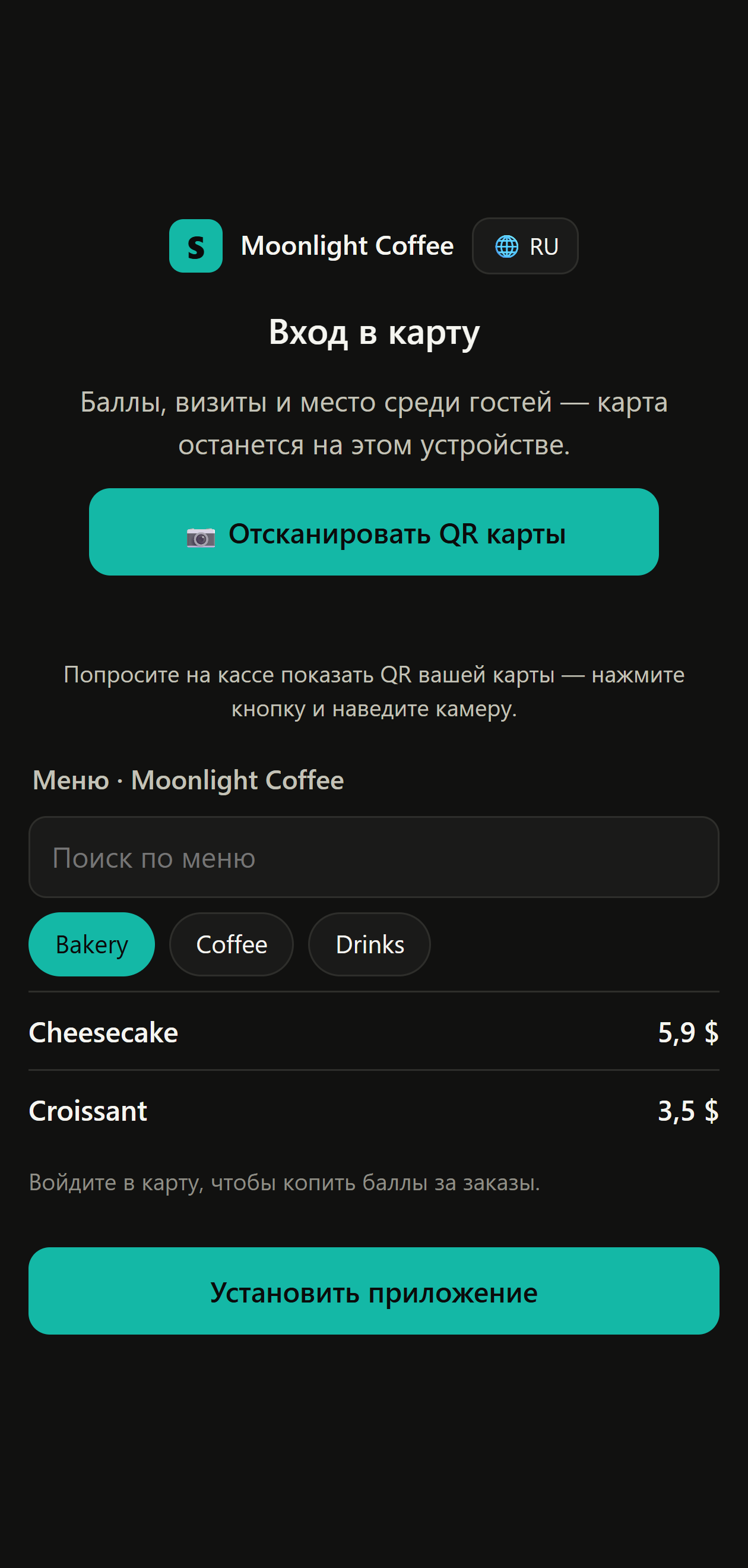
- Only the categories you ticked: internal ones, like "Consumables", stay hidden from guests.
- You set the order of the tabs — the first one opens for the guest right away.
- Item photos, if you uploaded them — as a list or as tiles, your choice.
- The colour and theme of the storefront match your place.
✅ How to turn it on
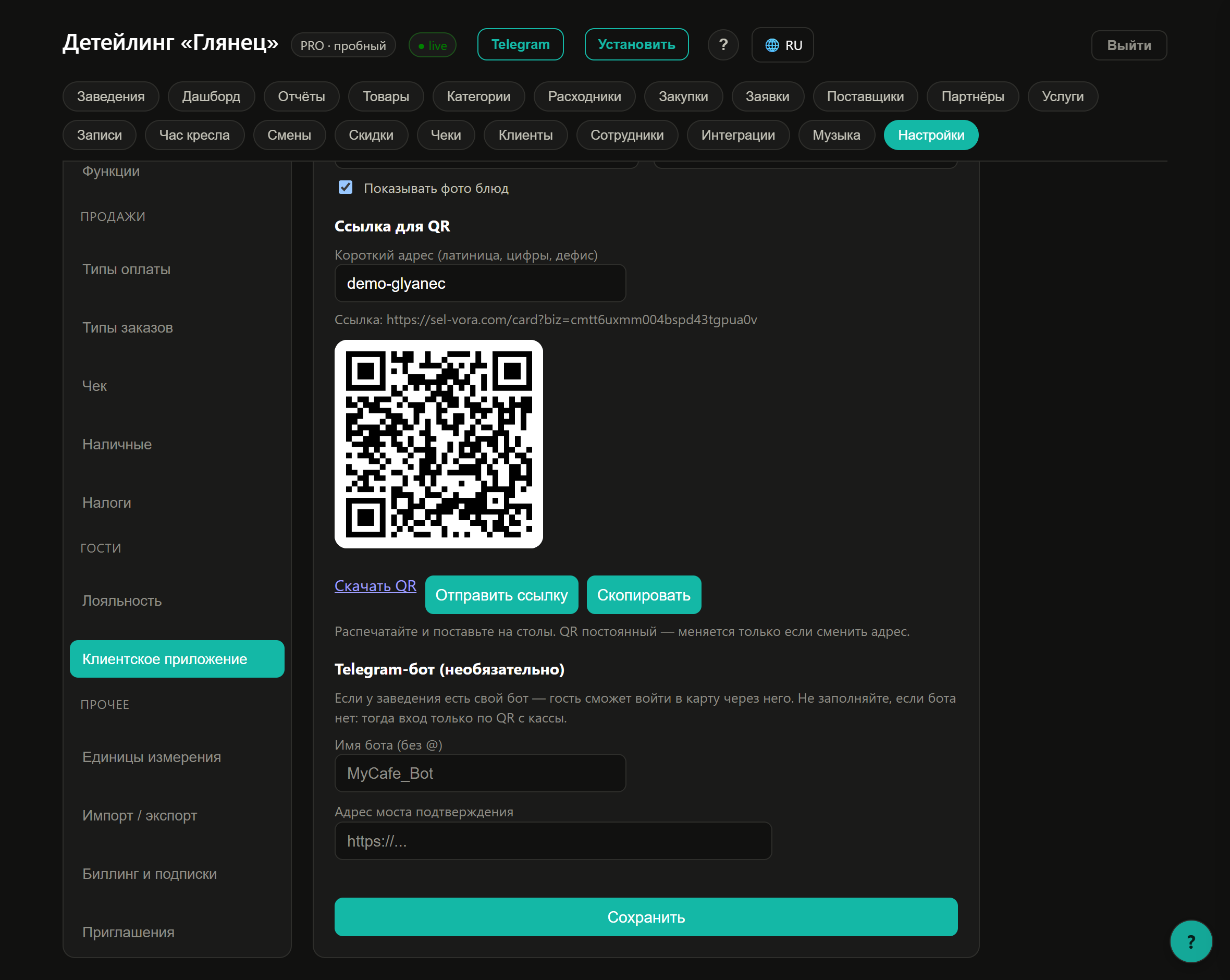
- Dashboard → Settings → Guest app.
- The "Show the menu to guests" checkbox.
- Tick the categories the guest should see.
- Set a short address — say my-coffee-shop. A ready QR appears right under it.
🖨️ What to print for the table
Press "Download QR" and send the file to print: table stickers, stands, a menu corner, a sticker on the window — wherever suits your guest.
- Print the QR at least 3 cm wide — smaller and phones read it every other time.
- Add a caption: "Menu" or "Point your camera". A bare square gets scanned less often.
- Don't put it under glossy glass: the camera catches the glare, not the code.
🧾 Ordering from the phone is a separate checkbox
The menu and ordering are deliberately kept apart. You can show only the menu — the guest looks and calls the waiter, as usual. Or you can allow "Ordering from the phone": the guest fills a basket themselves and the request arrives at the POS.
- Ordering is only available to a guest logged into their card — so no anonymous "jokes" appear at the table.
- The cashier accepts or declines the request. It does not become a receipt by itself.
- A Telegram notification arrives about a new request — the barista finds out even after stepping away to the coffee machine.
🚧 What it doesn't do
- It doesn't take payment online. The guest pays at the POS, as usual.
- It doesn't replace the waiter. A request from a phone is still confirmed by a person.
- It doesn't show what isn't in the POS. Want an item in the storefront — add it as a product.